
The Free AI Coding Stack That Actually Works (My Vibe Programming Workflow)
My terminal became a graveyard of failed AI experiments. Now I use a “dual-brain” setup: plan in web UIs, execute in a fast CLI. Here’s a concise guide to a free AI coding stack that actually works.

The Quest for a Free, Usable AI Coder
For the past few months, I’ve been on a crusade to find the perfect, free AI coding assistant. My goal was simple: a tool that would let me stay in the “vibe programming” flow, without the constant frustration of buggy agents, slow responses, or hitting a paywall.
My journey took me through the entire landscape of free tools, and each one had its own unique flavor of disappointment:
Kilo Code CLI: As I wrote in my previous articles, this was like meeting an old friend with the same old problems. The “Blind Conductor and Amnesiac Agent” architecture is still a major issue, and file editing errors persisted even for CLI with default settings. I quickly abandoned it again.
Gemini CLI: Excellent at understanding long contexts (tested with 200K+ token repos), but agonizingly slow. Gemini took 6 minutes for a 200-line file, that’s 6x slower than Cline. The only way to use it was to start a job and then go make coffee, hoping it wouldn’t have crashed by the time I got back.
Qwen CLI: Fast and decent quality, but it felt like a “B student.” Not as fast as some newer models and not smart enough for complex tasks. It was the “golden middle” that I never actually needed.
Cursor (Free Tier): I’d heard great things about its ability to handle large codebases, and it’s fantastic for researching code. But the free tier only lets you “ask” about code, not automate changes. My biggest frustration was that it would read files in 100-line chunks, making it impossible to get a holistic view without multiple prompts.
I was stuck in a loop. The smartest models were trapped in slow or limited interfaces. My workflow degenerated into a clumsy dance of manually copying code snippets from a web chat, then hunting through my codebase to find the exact function to paste them into. It felt like I was the AI’s clumsy human intern. That’s when I stopped fighting the tools and started combining them
Connect on social networks:


The “Aha!” Moment: The Dual-Brain Workflow
The breakthrough came when I stopped looking for a single tool to do everything. Instead, I decided to build a workflow that leverages the strengths of two different types of tools:
The “Deep Thinker” Brain (Web UI): For planning, architecture, and understanding the entire project context. This is where the heavy lifting happens.
The “Fast Hands” Brain (CLI): For surgically executing the detailed plan created by the thinker, without needing to re-analyze everything from scratch.
This “dual-brain” approach solves the core problem. The smartest models (like Gemini Pro) shine in a web UI where you can feed them an entire repository as a single piece of context. Meanwhile, a fast, lightweight CLI agent is perfect for applying the resulting plan without needing to “think” too much, which avoids errors and saves tokens.
My Current Stack: The Step-by-Step Guide
Today, my vibe programming workflow is smooth, fast, and almost entirely free. Here’s exactly how it works:
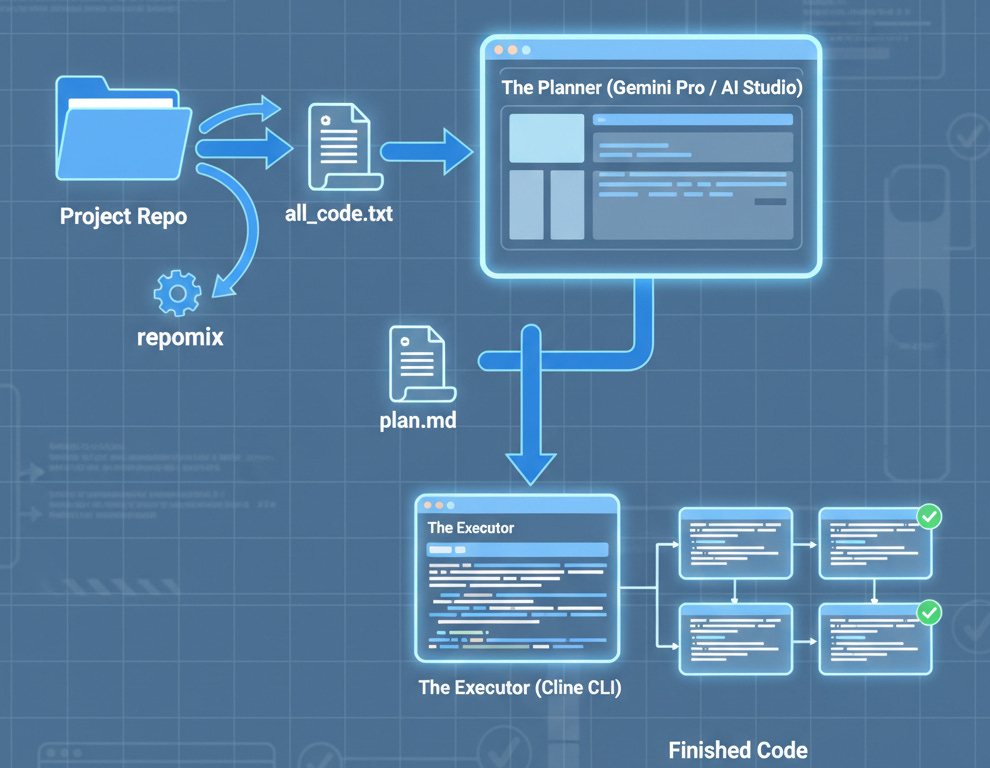
Step 1: The Deep Plan (with a Powerful Web UI)
For any complex task, I start by giving the AI the full picture. I use a simple script with repomix to bundle my entire codebase into a single all_code.txt file. Then, I upload this file to one of these free, powerful web UIs:
aistudio.google.com (Gemini Pro): My top choice. Gemini performs significantly better in the AI Studio than via its CLI. It’s brilliant at finding bugs and planning changes when it has the full context.
chat.z.ai (GLM models): A fantastic and often overlooked alternative.
Perplexity: Great for research‑heavy tasks that require up‑to‑date information or for 8k‑token chats with state‑of‑the‑art models on the Pro plan (there many ways to get it for free)
My prompt here is crucial. I don’t ask for code. I ask for a detailed, model-agnostic implementation plan in Markdown. This plan becomes the “source of truth” for the next step.
Step 2: The Surgical Execution (with Cline CLI)
This is where the magic happens. I take the plan.md file generated in Step 1 and hand it off to Cline CLI.
Cline has become my go-to executor for a few key reasons. It has an automatic plan -> act workflow, it’s incredibly fast with the free MiniMax-M2 model, and via cline auth, it gives you access to a massive list of other free models to experiment with.
I run it with a single command that makes it fully autonomous:cline -y --no-interactive
This tells Cline to proceed without asking for confirmation. It often writes and runs tests on its own, even if I don’t explicitly ask it to, which is a nice bonus.
To give it more room to think, I’ve tweaked two settings:cline c set plan-mode-thinking-budget-tokens=10000cline c set act-mode-thinking-budget-tokens=10000
This combination is the best of both worlds: the deep, contextual understanding of a massive web model, and the fast, automated execution of a lightweight CLI agent.
(A Note on Aider: A similar workflow can be achieved with aider and its copy-paste mode, which is great for very large projects where you can’t upload the whole repo. It intelligently copies relevant context to your clipboard. However, for my small-to-medium projects, I find my repomix + Web Chats workflow to be simpler and faster.)
Real-World Example: Refactoring Authentication
Here’s how this workflow handled a real task: migrating my FastAPI app from simple JWT to OAuth2 with refresh tokens.
Step 1.1: Prepare the Project Context
First, I bundled the entire project’s code into a single context file using repomix.
repomix --output all_code.txt
Pro-Tip: Advanced Context for Larger Repos
For bigger projects, you can create more focused context files to stay within token limits:repomix --include “src/backend/” --output “all_backend_code.txt”It can also be useful to include a repository map from Aider that contains main code structures and connection or a recent git diff:
aider --show-repo-map --map-tokens 99999 > repo_map.md
git diff --unified=99999 > recent_changes.txt
Step 1.2 (Gemini Pro via AI Studio): I uploaded my all_code.txt (12 files, ~3000 lines) and asked: “Create a detailed plan to migrate from JWT to OAuth2 with refresh tokens, including database schema changes, endpoint modifications, and security considerations.”
Result: A 400-line markdown plan with 8 sections, including migration steps, rollback strategy, and testing checklist. I spent another few minutes refining it with follow-up prompts to add more detailed code examples, ensuring it was ready for integration. Time: 3 minute.
Step 2 (Cline CLI): I saved the plan as oauth_migration.md and ran:
cat oauth_migration.md | cline -y --no-interactive
Cline executed the plan in 5 minutes: created 3 new database tables, modified 5 endpoints, added token refresh logic, wrote 12 unit tests. All passed on first run.
The payoff: Total time: ~8 minutes. Previous attempts with single-tool approaches either failed mid-execution (Kilo Code) or required constant babysitting (Qwen). For simpler tasks like single-file edits, Step 1 can often be done in Cursor or skipped entirely.
What If You Have a Budget?
If you’re willing to spend a little, the choice becomes much simpler:
$20/month: Don’t think, just get Claude Code. It’s the “it just works” solution and currently the undisputed king for serious development.
$3/month: Get GLM-4.6 on z.ai and use it within Claude Code instead of Sonnet. It’s a ridiculously powerful combo for the price.
Quick Start Checklist
To replicate this workflow in under 10 minutes:
Install Cline:
npm install -g @cline/cliInstall repomix:
npm install -g repomixRun
cline authand select MiniMax-M2(free)Bundle your repo:
repomix --output all_code.txtUpload
all_code.txtto aistudio.google.com, request an implementation plan, and save it asplan.md.Execute with:
cat plan.md | cline -y --no-interactive
This stack works today. It’ll evolve next month.

This is my stack today. It will probably be different next month. The world of AI tools is moving at a breakneck pace, and I’m constantly experimenting. This isn’t a final destination; it’s a snapshot of a moving target.
If you want to follow along as my toolkit evolves, subscribe to my blog where I post alternative configurations.
And now, I’m turning it over to you. What does your AI coding stack look like? Have you found a better free workflow? Share your tools and configs in the comments. Let’s learn from each other.
*This was written using Elicito Ai
The dual-brain framing clicks. OpenCode has this built in natively. Plan mode is read-only and cannot touch files, for the architecture and design phase. Build mode is when you are ready to execute. You stay in one terminal the whole time rather than bouncing between a web UI and a separate CLI. Covered how that workflow actually plays out day to day: https://reading.sh/the-definitive-guide-to-opencode-from-first-install-to-production-workflows-aae1e95855fb